clearout
  • Products
    • Email Verifier Verify emails addresses individually, in bulk or through API, with 99% accuracy
    • Email Finder Find individual or bulk emails by entering the person & company name or domain
    • Form Guard IconForm Guard Protect your forms from spam, bots, and invalid submissions with real-time email, phone, and name verification.
    • Prospect SQL/MQL list building with high levels of personalization, real-time data enrichment and prospect search
    • Clearout For SheetsVerify email addresses directly on Google Sheets with Clearout for sheets add-on
    • Prospect – LinkedIn Chrome ExtensionBuild verified, targeted prospect lists directly from LinkedIn profiles
    • ClearoutPhoneValidate phone numbers across 240+ countries in bulk, quick or real time validation
    • Free Tools
    • Disposable Email Checker
    • Reverse LinkedIn Profile Lookup Tool
    • Reverse Email Lookup Tool
    • Email List Cleaner
  • Resources
      DEVELOPERAPI iconAPI
      Clearout APIs are structured around REST and JSON
      Webhooks iconWebhooks
      Capture real-time events in your application workflow
      Form Guard iconForm Guard
      Real-time form validation to keep bad contacts out of your CRM
      KNOWLEDGE BASEGetting started iconGetting started
      Sending campaigns without bounces is made simple
      FAQ iconFAQ
      Easily find answers to services, security and common questions
      USE CASESLead Generation iconLead Generation
      Learn how professionals generate quality leads
      GUIDESPricing arrow iconTransparent & flexible pricing to support pay-per-use or recurringCompare Email Verification Tools arrow iconAI-powered email verification with 99%+ accuracy, real-time validation, and transparent risk scoringCompare Email Finder Tools arrow iconPre-verified B2B email addresses with confidence scoring, find real person email, not role-based addressBLOGSEmail Verification ToolsFind Anyone’s Email Address
      Most Accurate, Fast & Free Ways
      Form Validation
      Importance, Ways & Best Practices
      View All Blogs
  • Pricing
  • Integrations
  • Enterprise
  • Login
Try it free Book a 1-to-1 demo
Priyanshi Sharma / February 18, 2026 February 18, 2026

Why Your Emails Hit Gmail's Promotions Tab (and How to Fix It)


Why Your Emails Hit Gmail's Promotions Tab (and How to Fix It)

You might celebrate when your campaigns avoid the spam folder. But what to do when it enters Gmail's Promotions tab?

Here's what most people miss: Primary vs Promotions tab isn't about email quality. It's about email classification. Google Gmail evaluates your format, structure, and business indicators to determine the aim. When your email resembles marketing, then it is classified as marketing.

The impact is significant. Emails in Primary get 2-3x higher open rates than identical emails in Promotions. Reply rates drop 60-80%. Your carefully written cold outreach or product update gets buried under clothing sale notifications and restaurant coupons.

This guide provides the reasons as to why emails sent via Gmail end up in the Promotions tab and not Primary, what factors actually trigger this classification, and what you can do to fix this issue today.

Table of Content


‣ Why Do Emails Land in Gmail's Promotions Tab?
‣ Primary vs Promotions Tab: What's the Difference?
‣ How to Avoid Gmail Promotions Tab: Actionable Fixes
‣ What Factors Influence Gmail Tab Placement
‣ What are the Common Mistakes that Push Emails into Promotions
‣ Quick Checklist: Will Your Email Go to Promotions?
‣ Final Takeaways
‣ FAQs
Why Do Emails Land in Gmail's Promotions Tab?


Emails end up in Gmail in the Promotions section when the machine learning algorithm at Gmail senses the indicators of bulk marketing, commercial intent and pattern of promotional formatting.

How Gmail's Tab System Works?


Gmail's tab system uses artificial intelligence trained on billions of emails to predict what category each message belongs in.

The algorithm looks at hundreds of variables:

  • your HTML structure
  • image-to-text ratio
  • link density
  • button formatting
  • commercial language
  • sender patterns
  • recipient engagement history

Promotions tab placement is not a deliverability failure. Your email reached the inbox successfully. Gmail just defined it to be marketing material and not personal correspondence. The unwanted, dangerous, or fraudulent emails should be put in the spam. Promotions tab will contain commercial emails that Gmail believes you might be interested in, but not urgently.

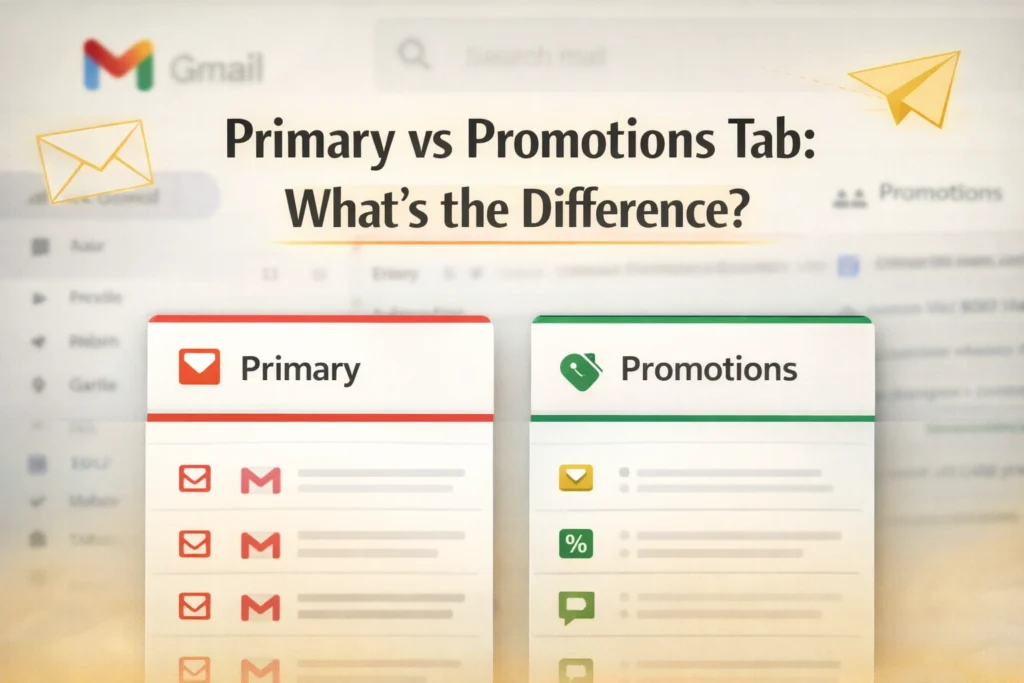
Primary vs Promotions Tab: What's the Difference?


Checklist on how to avoid the Gmail promotions tab.

The tab system of Gmail allows establishing different contexts of interaction with emails with the recipients. Insight into these allows you to create emails that will fall in the primary tab.

Primary TabPromotions Tab
1:1 sender-recipient patternOne-to-many broadcast pattern
Plain-text or light formatting (≤1 styled element)HTML templates with structured layout blocks
0–2 contextual linksMultiple CTAs, tracked links, buttons
Natural dialogue structure (question-based sentences)Offer-driven, persuasive copy
No banners or hero imagesHeader banners, product visuals
Human sender identity (e.g., “Rahul from Clearout”)Brand/entity sender identity (e.g., “Clearout Team”)
Reply-focused intentClick-focused intent
Thread-based conversationsCampaign-style distribution
Higher reply-to-open ratioHigher click-to-open ratio

1. Behavioral & Algorithmic Differences (Expert-Level Insights)


  • Primary emails are typically opened within 0–4 hours, driven by perceived conversational intent.
  • Promotions emails are often batch-processed within 24–72 hours, or accessed through search behavior.
  • Gmail classification is behavior-trained, not template-based alone.
    It evaluates:
    • Reply frequency patterns
    • Forward behavior
    • Link-click density
    • Template repetition similarity
    • Historical engagement clustering
  • Emails with high reply probability signals (short body text, low link density, single sender identity) trend toward Primary classification.
  • Emails containing:
    • Multiple tracked URLs
    • Repeated campaign headers
    • Marketing phrasing patterns
    • Image-heavy HTML blocks statistically cluster in Promotions.
  • Classification reinforcement is engagement-driven:
    • Low engagement → reinforces Promotions placement.
    • Direct replies → reinforces Primary placement.
  • Placement materially affects performance:
    • Primary placement can produce 4–6× higher reply rates in cold outreach.
    • Promotions placement shifts user intent from conversation → passive browsing.
  • Promotions placement is inbox segmentation logic, not sender penalty.
    However, it directly impacts:
    • Reply velocity
    • Thread depth
    • Conversation probability

2. Design & Template Triggers


  • Branded HTML templates

    Branded HTML templates with headers, footers, and multi-column layouts scream marketing. That beautiful newsletter template with your logo banner, social media icons, navigation links, and footer disclaimer? Promotions. Every time. Gmail knows personal emails don't have branded headers and footer navigation.

  • Heavy CSS styling

    Heavy CSS styling with custom fonts, background colors, border styling, and complex layouts triggers classification. Personal emails use default formatting. When Gmail sees extensive CSS customization, it recognizes template-based marketing.

  • Unsubscribe footer formatting

    Unsubscribe footer formatting is an instant giveaway. The standard marketing email footer with small gray text, company address, and "unsubscribe" link tells Gmail this is a bulk campaign. While legally required for commercial email, it triggers the Promotions classification.

  • Tracking-heavy email structure

    Tracking-heavy email structure with pixel trackers, link tracking parameters, and read receipt mechanisms signal bulk sending. Gmail can detect tracking infrastructure even when invisible to recipients.


3. Content Triggers


  • Discount language

    Discount language immediately signals promotion. Words like "sale," "discount," "50% off," "limited time offer," "coupon code," and "deal" are commercial vocabulary. They rarely appear in personal correspondence. Using them pushes you toward Promotions.

  • Product catalogs and listings

    Product catalogs and listings with multiple items, prices, or product descriptions signal e-commerce. Showing 4-6 products with images and prices? Definitely Promotions.

  • Multiple CTAs

    Multiple CTAs asking recipients to take several different actions indicate marketing. "Visit our website, follow us on social media, download our app, shop the sale" is marketing language. Personal emails have one clear ask.


4. Structural Signals


  • Too many links

    Too many links suggest promotional content. Personal emails might have 1-2 links maximum. Marketing emails have 5-15 links (products, categories, social media, unsubscribe, view in browser). Gmail counts links and weighs this heavily in classification.

  • Button-heavy layouts

    Button-heavy layouts with multiple clickable elements look like landing pages, not correspondence. Buttons for different products, actions, or sections signal bulk marketing.

  • Header and banner sections

    Header and banner sections at the top of emails are template indicators. Marketing emails start with logo banners, navigation menus, and announcement bars.

  • Footer disclaimers

    Footer disclaimers with legal text, physical addresses, and unsubscribe mechanisms are required for bulk commercial email. Their presence tells Gmail exactly what type of email this is.


How to Avoid Gmail Promotions Tab: Actionable Fixes


Checklist on how to avoid the Gmail promotions tab.

Shifting from Promotions to Primary requires removing commercial signals from your email design and content. Here are specific, implementable changes that improve classification.

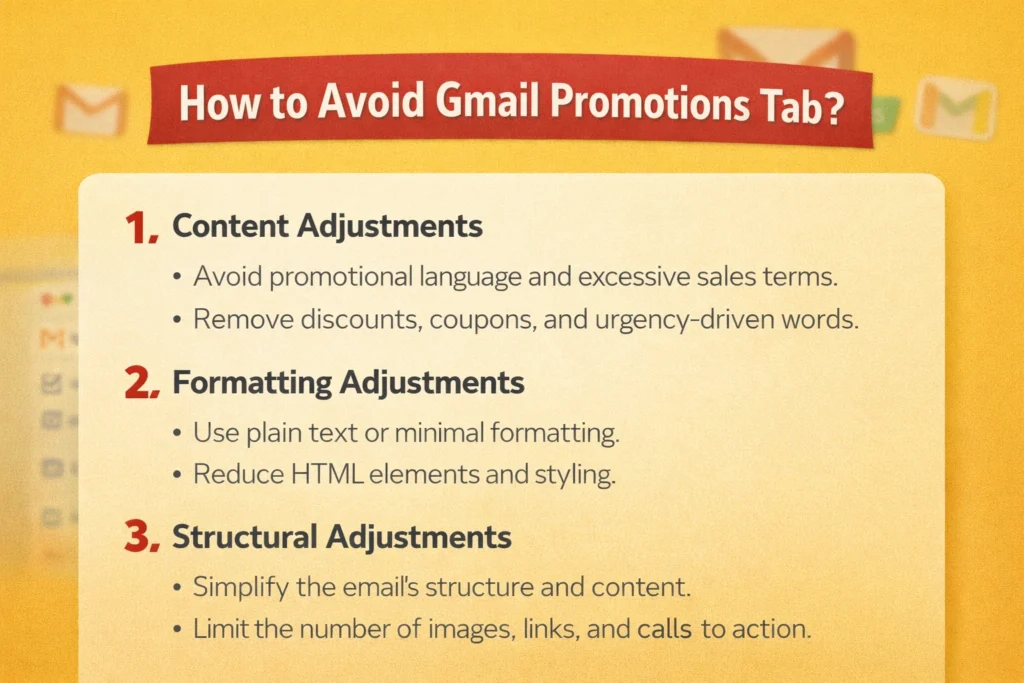
1. Content Adjustments


  • Reduce link count dramatically.

    Limit yourself to one link per email. If you must include two, make sure one is your primary CTA and the other is essential context. 3 or more links significantly increase the probability. Every additional link tells Gmail this email wants recipients to visit multiple destinations, which is marketing behavior.

  • Remove banners and headers completely.

    Begin your email with the name of the recipient, not with your logo. No announcement bars. Your email should begin with "Hi Sarah," not a branded template header.

  • Write conversational copy.

    Replace "We're excited to announce our industry-leading solution" with "I built something that might help with [specific problem]." Use contractions. Write shorter sentences. Sound human.


2. Formatting Adjustments


  • Use lighter HTML or plain text.

    Strip your email down to basic formatting. Black text on white background. Simple paragraph breaks. Send plain-text emails when possible. They almost always land in Primary.

  • Avoid image-heavy layouts.

    Zero images are ideal for Primary placement. Product photos, infographics, or multiple graphics push you toward Promotions. Text carries your message. Images should support, not dominate.

  • Limit buttons to one maximum.

    Better yet, use text links instead of buttons. They're marketing design patterns. Text links like "Here's the case study" feel more personal than "DOWNLOAD CASE STUDY" buttons.

  • Increase plain-text ratio significantly.

    Your message should be 80%+ readable text. If someone disabled images and CSS, would your email still communicate clearly? If not, you're relying too heavily on design elements that trigger Promotions classification.


3. Structural Adjustments


  • Remove promotional preview text.

    Preview text is the snippet visible before opening. Marketing emails stuff this with CTAs: "Shop now and save 40%!" Personal emails let the first sentence show naturally. Don't optimize preview text with commercial messages.

  • Segment your audiences.

    Generic batch emails to thousands of recipients trigger bulk sending detection. Smaller, targeted segments with genuine personalization land in Primary more often. Gmail recognizes when every recipient gets identical formatting versus when emails are individually crafted.


What Factors Influence Gmail Tab Placement


While content and formatting drive most tab classification decisions, several strategic factors also influence where your emails land. These are covered extensively in our email inbox placement guide, but warrant brief mention here for completeness.

1. List hygiene matters critically


List hygiene matters critically. Sending emails to invalid email addresses, spam traps, or temporary addresses harms the reputation of the emails sent and this has an indirect impact on the placement of the tab.

Clean and validated lists with the best email validation tools like Clearout can help in reducing bounce rates and improve your sender reputation.

2. Engagement history


Engagement history is powerful. In case recipients are regularly opening, responding to, and reading your email messages, Gmail notices that they want to receive your messages and will be put in Primary more often.

3. Sender reputation


Sender reputation affects classification at the margins. Established senders with strong authentication and positive sending history get slightly more benefit of doubt than brand new senders. And this can be done by validating the email lists to check if addresses are valid, invalid, catch-all, temporary, disposable, etc.

4. Email authentication


Email authentication through SPF, DKIM, and DMARC is important. Without proper authentication, you're unlikely to reach Primary consistently. This is table stakes for inbox placement generally, covered in detail in our main deliverability guide.

What are the Common Mistakes that Push Emails into Promotions


A list of common mistakes that push emails into the promotions tab.

These mistakes appear repeatedly in emails stuck in Promotions. Recognize them and eliminate them from your sending strategy.

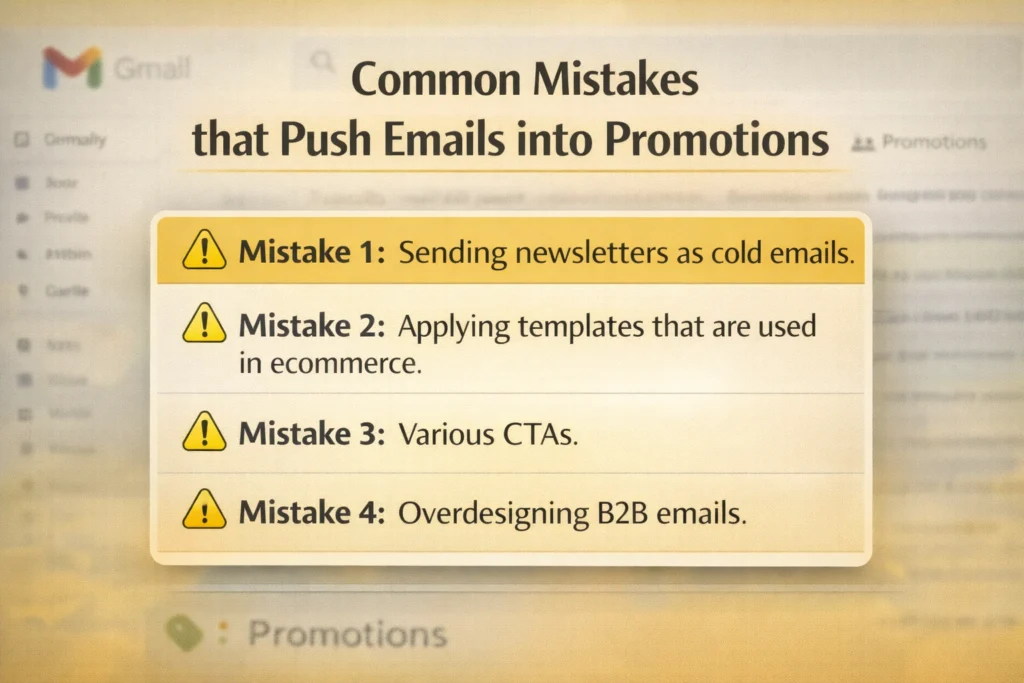
Mistake 1: Sending newsletters as cold emails.


Your newsletter template is designed for Promotions. That's fine for newsletter subscribers who expect that format. But using the same template for cold outreach or sales prospecting guarantees Promotions placement.

The recipient has no relationship with you yet, and you're hitting them with branded HTML, multiple links, and marketing formatting. Separate your templates. Newsletters can be designed. Cold outreach should be plain.

Mistake 2: Applying templates that are used in ecommerce.


Promotional campaigns develop product announcement templates that include image galleries, price tables, and several CTAs on the products.

The attempt to reuse them as B2B sales or as an outreach to a partner is unsuccessful. Find your purpose in your template.

Mistake 3: Various CTAs.


You believe you are helping by providing the options of scheduling a call, downloading our guide, or watching our demo.

Gmail believes that you are promoting and it comes up with a variety of conversion paths. Pick one. The more personal your email, the more clear is your focus.

Mistake 4: Overdesigning B2B emails.


B2B marketers tend to think that professional e-mail messages must be designed professionally. They include logo header, custom brand color, stylish buttons, and footer buttons.

All this drives towards Promotions. B2B customers are more responsive to plain emails that are written in a personal manner. Store the design to your web site.

Quick Checklist: Will Your Email Go to Promotions?


Before sending, run your email through this checklist. Each "yes" increases the probability.

1. Formatting check


  • More than one image?
  • Branded header or banner?
  • Custom background colors or fonts?
  • Footer with unsubscribe and company address?
  • Multiple buttons or styled CTAs?
  • Multi-column layout?

2. Content check


  • More than one link?
  • More than one call-to-action?
  • Discount or sale language?
  • Pricing mentioned?
  • Multiple products featured?
  • Urgency phrases (limited time, today only, etc.)?

3. Structural check


  • Subject line with emojis or all caps?
  • Preview text optimized with CTA?
  • 5+ total links?
  • Email looks like a template?
  • Sent to large batch simultaneously?

The more triggers you remove, the better your chances of Primary. You don't need to eliminate every trigger, but reducing your count from 8 to 2 dramatically improves classification outcomes.

Use this checklist before every campaign. Audit your templates. Count your links. Review your formatting. Small changes compound into significant placement differences.

Final Takeaways


Audit your current email templates using the checklist above. Count triggers. Most people discover 6-10 promotional signals in their templates.

Validate your email list with Clearout to ensure strong foundational deliverability. Tab placement optimization only matters if your emails reach inboxes reliably.

Test simplified versions of your emails. Send A/B tests with your current template versus stripped-down plain-text versions. Monitor tab placement and reply rates.

Get Your Emails Into Primary Tab


Validate Your Email List Today

FAQs


1. Why are my emails showing in the Promotional folder?
The emails are showing in the Promotions section since Gmail thinks that the message would be similar to a marketing and not a personal conversation. Gmail looks at indicators such as links, buttons, such as Buy Now or Get Started, images or banners, language to use its discounts, templates used in HTML design, and unsubscribe footers.
2. What are the ways to transfer an email from the Promotions tab to the Primary inbox?
You can transfer an email to your Primary tab with the steps mentioned below:

  • Open Gmail.

  • Click the Promotions tab.

  • Drag the email into the Primary tab.

  • Gmail will ask if future messages from that sender should go to Primary.

  • Click Yes.

  • After that, Gmail remembers your choice for that sender.

3. Can I permanently stop emails from going to Promotions?
You cannot control Gmail’s system directly as a sender. However, you can reduce promotional signals by writing shorter emails, using plain text instead of heavy design, limiting links, avoiding sales language, and using only valid email lists. This can be done by using the best email verification tools like Clearout.

Share this article

Recent Posts

18 Feb 2026
Why Your Emails Hit Gmail's Promotions Tab (and How to Fix It)

Explore why emails land in Gmail’s Promotions tab and how to fix it. Learn proven tips to move emai ...

16 Feb 2026
WPForms Spam Protection: Features, Limitations & Alternatives

Explore how WPForms spam protection works, its limitations, and the best way to prevent fake, dispos ...

13 Feb 2026
Top 5 Findymail Alternatives Compared in 2026

Explore the best Findymail alternatives in 2026. Compare the features, pricing, reviews, and why Cle ...

12 Feb 2026
How Long Should a Cold Email Be? (2026 Guide)

How long should a cold email be in 2026? Explore ideal cold email length for different roles, why sh ...

02 Feb 2026
Email Finder vs LinkedIn Prospecting: Which to Use and When

Explore the list of 100+ spam-associated words to be cautious with in 2026, and see how modern email ...

Clearout's

Form Guard

Validate email, phone & name on any forms!

  • Real signups only
  • Verified emails
  • Valid phone numbers
  • No fake names
  • Cleaner CRM
  • No devs needed
Try for Free Now

Email Verification, Email Finding Form Guard & Prospecting Service

Expand Your Reach By Finding & Verifying Ideal Prospects.

Sign up & get 100 free credits

No Credit Card required

Create Free Account
Company

Why Clearout?

Pricing

Contact Us

Careers

Press

Enterprise

Sitemap

FAQ

Status

Products

Email Verifier

Email Finder

Form Guard

Prospect

LinkedIn Email Finder

Reverse Lookup

Google Sheets Add-on

WordPress Plugin

ClearoutPhone

What's New?

Resources

Integrations

HubSpot

Team Account

API

Compare Email Verifier

Compare Email Finder

Compare Prospecting

Use Cases

Blog

Help

Legal

Privacy Policy

Terms

DPA

Security

Trust Center

Certification

ISO 27001/2022

SOC 2 Type 2

GDPR

Partnership

HubSpot Certified

Affiliates

Partners

Clearout for browser

⚡ Supercharge Your Prospect Research with Clearout's LinkedIn Chrome Extension - Find and Verify Emails with Confidence!

Clearout Chrome extension

clearout
© 2026 Clearout Inc. All Rights Reserved. Powered by Clearout.
Auto Credit Replenishment is here! Your credits can now recharge automatically. Learn More ➞
X