clearout
  • Products
    • Email Verifier Verify emails addresses individually, in bulk or through API, with 99% accuracy
    • Email Finder Find individual or bulk emails by entering the person & company name or domain
    • Form Guard IconForm Guard Protect your forms from spam, bots, and invalid submissions with real-time email, phone, and name verification.
    • Form Guard IconData Pulse Verify, enrich, and monitor your CRM contacts in real time - heartbeat monitor for your data.
    • Prospect SQL/MQL list building with high levels of personalization, real-time data enrichment and prospect search
    • Clearout For SheetsVerify email addresses directly on Google Sheets with Clearout for sheets add-on
    • Prospect – LinkedIn Chrome ExtensionBuild verified, targeted prospect lists directly from LinkedIn profiles
    • ClearoutPhoneValidate phone numbers across 240+ countries in bulk, quick or real time validation
    • Free Tools
    • Disposable Email Checker
    • Reverse LinkedIn Profile Lookup Tool
    • Reverse Email Lookup Tool
    • Email List Cleaner
    • Company Domain Finder API
  • Resources
      DEVELOPERAPI iconAPI
      Clearout APIs are structured around REST and JSON
      Webhooks iconWebhooks
      Capture real-time events in your application workflow
      Form Guard iconForm Guard
      Real-time form validation to keep bad contacts out of your CRM
      KNOWLEDGE BASEGetting started iconGetting started
      Sending campaigns without bounces is made simple
      FAQ iconFAQ
      Easily find answers to services, security and common questions
      USE CASESLead Generation iconLead Generation
      Learn how professionals generate quality leads
      GUIDESPricing arrow iconTransparent & flexible pricing to support pay-per-use or recurringCompare Email Verification Tools arrow iconAI-powered email verification with 99%+ accuracy, real-time validation, and transparent risk scoringCompare Email Finder Tools arrow iconPre-verified B2B email addresses with confidence scoring, find real person email, not role-based addressBLOGSEmail Verification ToolsFind Anyone’s Email Address
      Most Accurate, Fast & Free Ways
      Form Validation
      Importance, Ways & Best Practices
      View All Blogs
  • Pricing
  • Integrations
  • Enterprise
  • Login
Try it free Book a 1-to-1 demo
Priyanshi Sharma / June 22, 2026 June 22, 2026

How To Find Email Addresses In Google Sheets


How To Find Email Addresses In Google Sheets

Cold outreach is getting harder every year.

Average cold email reply rates have dropped to just 5.1% while 43% of salespeople say getting higher-quality data is their biggest prospecting challenge.

That combination creates a frustrating reality for revenue teams. Reps are sending more emails, doing more research, and spending more time building lists, yet results continue to decline.

A big reason is bad contact data.

If email addresses are invalid or outdated, campaigns never have an opportunity to do well.

But, there is a much quicker way of finding verified email addresses without having to switch between several tools. You can do it directly inside Google Sheets with Clearout Email Finder.

This guide will explain how to use Clearout's Email Finder to find email addresses in Google Sheets in a matter of clicks.

Table of Content


‣ Why is your current email process costing you money?
‣ How to install Clearout Google Sheets add-on?
‣ Connecting your Clearout account
‣ Step-by-step guide: Find email addresses in Google Sheets
‣ Common mistakes that cost teams thousands
‣ How much better are your results? Real numbers
‣ Real-world use case: How a B2B sales team uses the Clearout Email Finder for Google Sheets?
‣ How do different teams find emails in Google Sheets?
‣ The bottom line
‣ FAQs
Why is your current email process costing you money?


If you are doing outbound, you have probably been through this before. You build a prospect list in Google Sheets. Then you jump to LinkedIn to find contacts. Open another tool to find emails. Open one more to cross-check them. Copy the results back into your spreadsheet.

As a result, email finding gets rushed. Guessed formats stay on the list. Campaigns go out anyway. Then the connection rates stay flat and nobody can explain why.

That is why having email finding directly inside Google Sheets changes the workflow entirely. You stay in the same sheet, get results instantly, and move from prospecting to outreach without the extra back and forth.

How to install Clearout Google Sheets add-on?


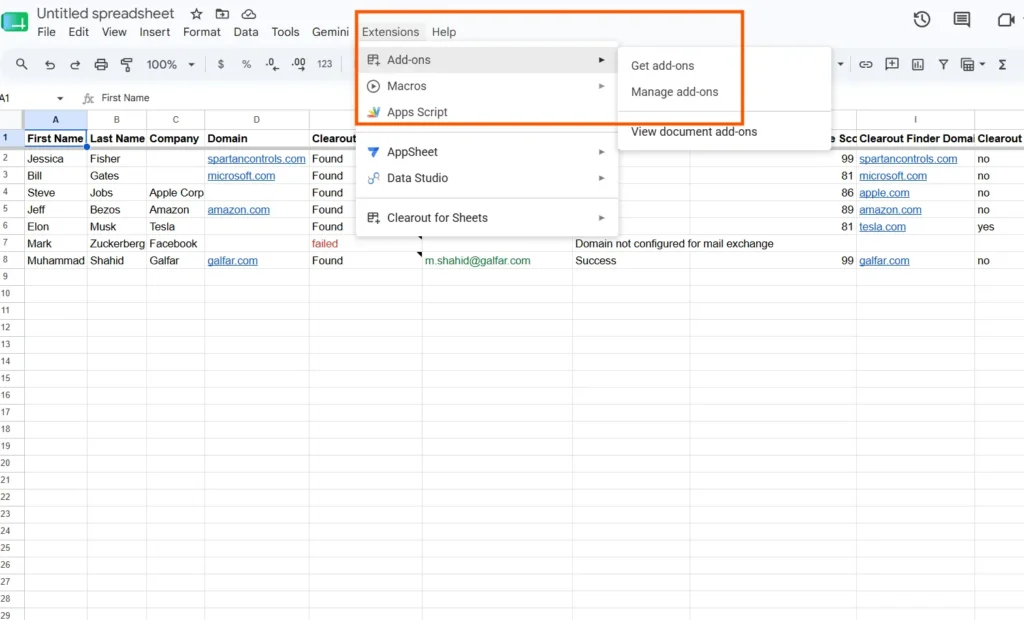
Google Sheets Extensions menu showing Add-ons.

There are just a few steps to start finding email address through Clearout for Sheets.

  • First, go to any Google Sheet and head over to Extensions → Add-ons → Get add-ons.
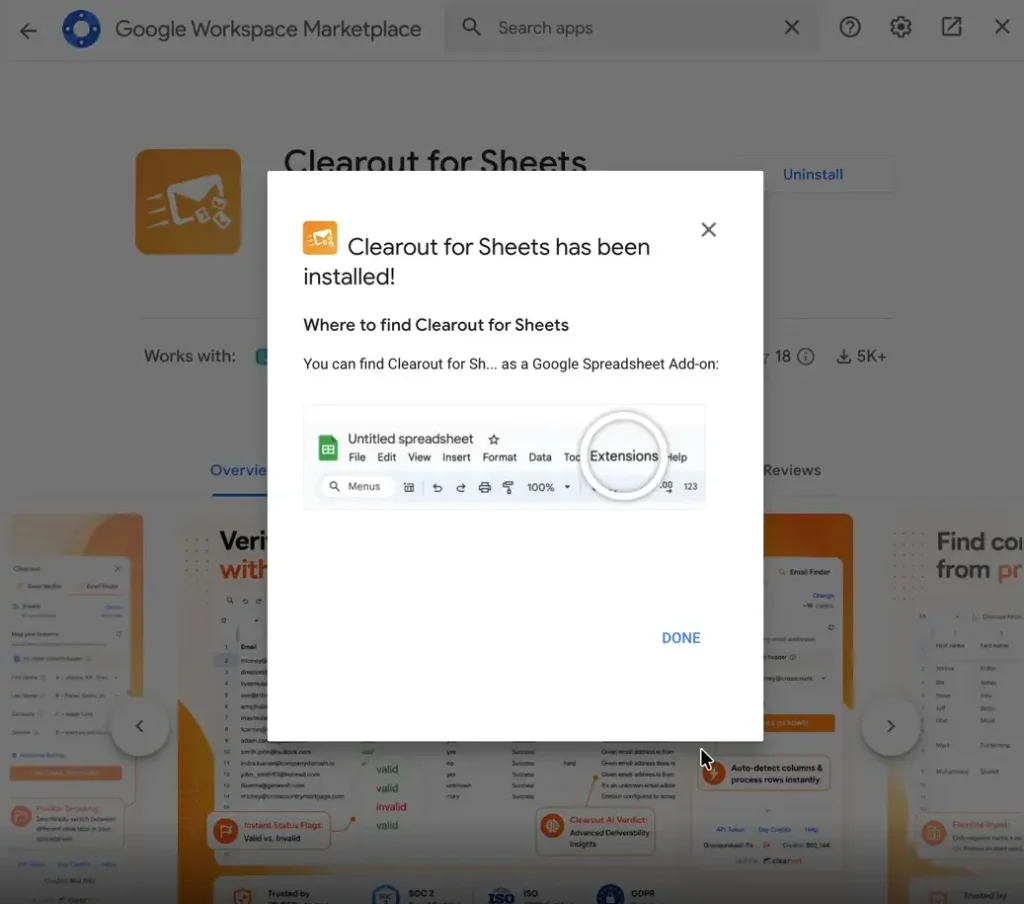
  • This will open the Google Workspace Marketplace. Search for Clearout for Sheets and open the listing.
  • Next, click Install and approve the permissions.
  • Once the installation is complete, go back to your Google Sheet and open Extensions → Clearout for Sheets → Launch.

Clearout opens in a sidebar, so you can find emails in bulk on Google Sheets and manage your data without constantly switching between tabs and tools.

Connecting your Clearout account


Installing Clearout for Sheets extension.

Before you start to find email addresses in Google Sheets, you will need to connect your Clearout account.

The first time you open the sidebar, Clearout will ask for your API key.

Open your Clearout dashboard, click on Developer's section, and create an API key. Then, copy the key into the clipboard and then paste it into the add-on.

Clearout will remember the API key for your account when connected, so that you don't have to input it again each time.

Step-by-step guide: Find email addresses in Google Sheets


Use Clearout Email Finder for Google Sheets when building new prospecting lists. You have target companies and prospect names from LinkedIn, website research, or databases, but need actual email addresses.

Step 1: Structure your data before starting


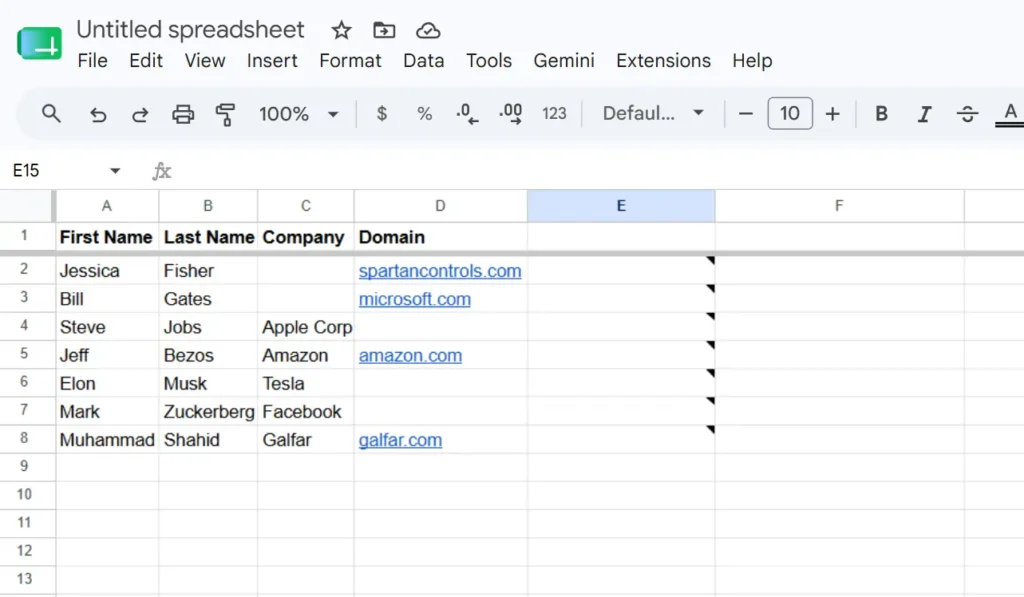
Google sheet with first, last, company, and domain as columns.

Create columns in this exact order to find emails on Google Sheets:

  • First Name
  • Last Name
  • Company
  • Domain

Step 2: Install and authenticate Clearout


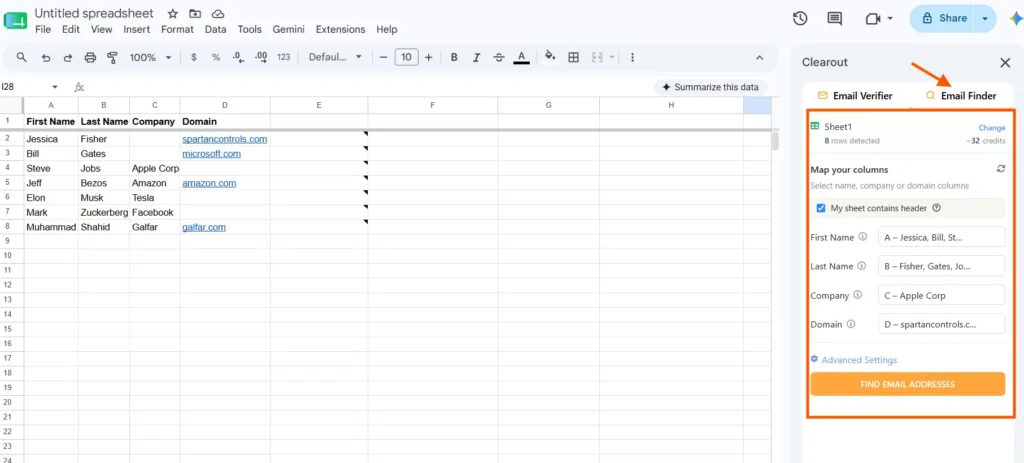
Email Finder opened from Clearout for Sheets.

Open Extensions → Clearout for Sheets → Launch.

Once the sidebar appears, hit the API token link and copy your API key from the Clearout dashboard.

Just copy and paste it to the sidebar and you're good to go.

It only requires under 30 seconds to setup and will only need to be done once.

Step 3: Auto-mapping


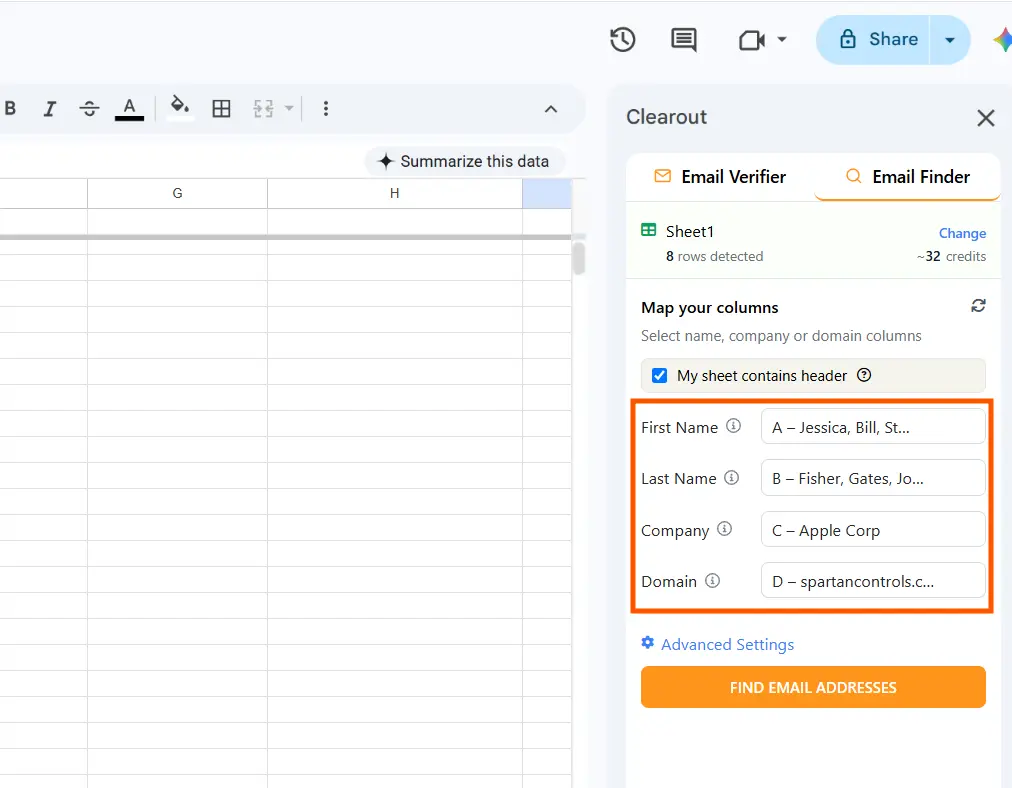
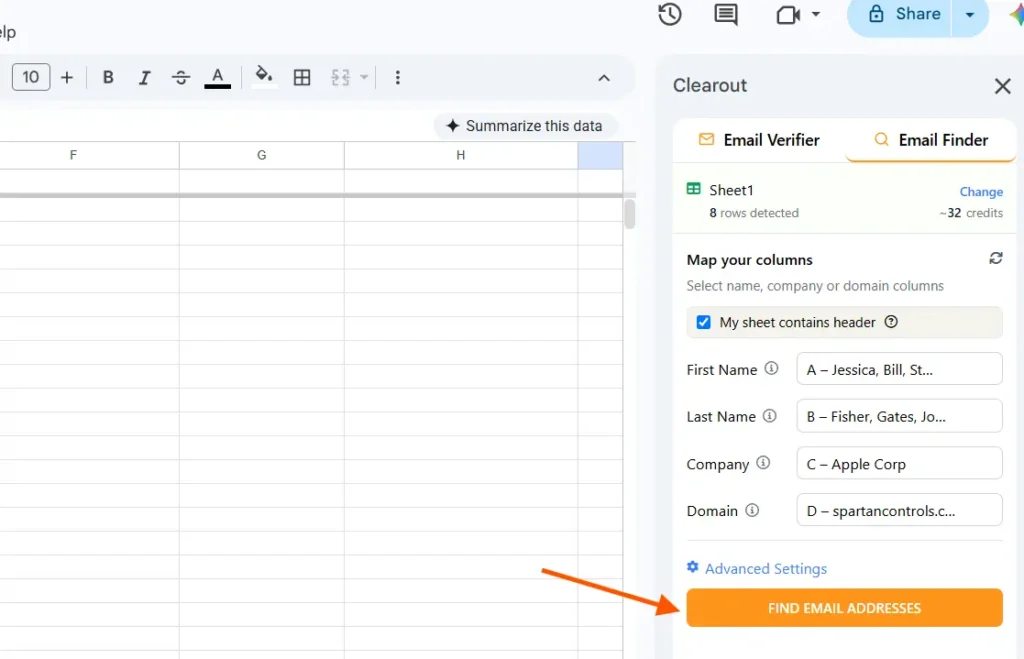
Email Finder mapping columns.

Clearout automatically extracts your sheet's information, such as names, company names, and domains.

When you are looking up an email address for the similar names, it will become much easier if you include their company domain.

Step 4: Use filter views to target specific segments


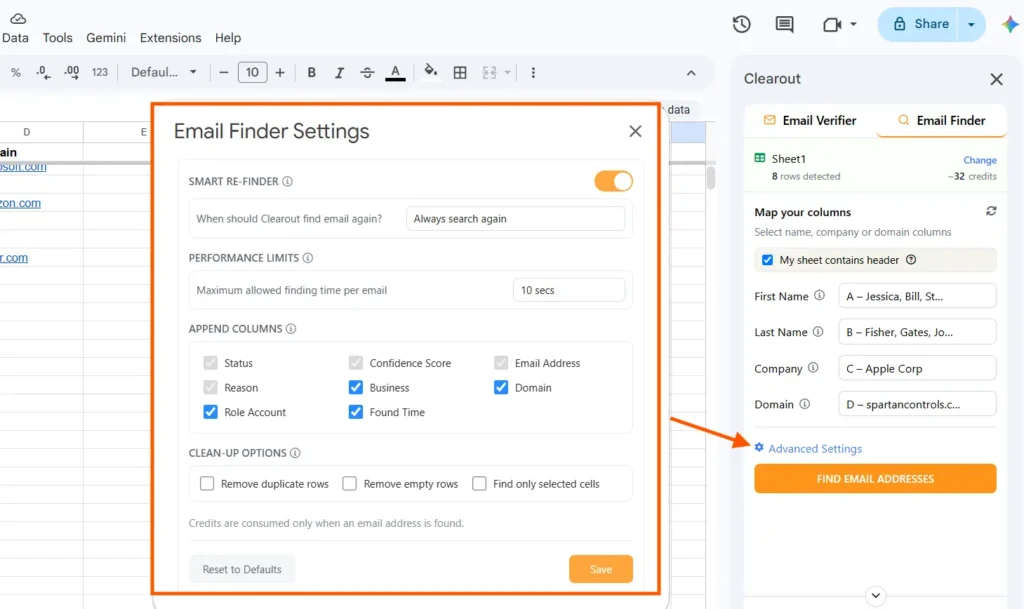
Clearout Email Finder advanced settings.

Before running the Google Sheets email finder, simply apply a filter to get only the rows you want to work on. Only the checked rows are processed by Clearout.

This allows you more flexibility in how you use the credits and helps you work for more focused batches.

Step 5: Click "Find email addresses" and watch real-time updates


Find email address button in the Clearout Email Finder.

Once you click “Find Email Addresses”, Clearout gets to work right away.

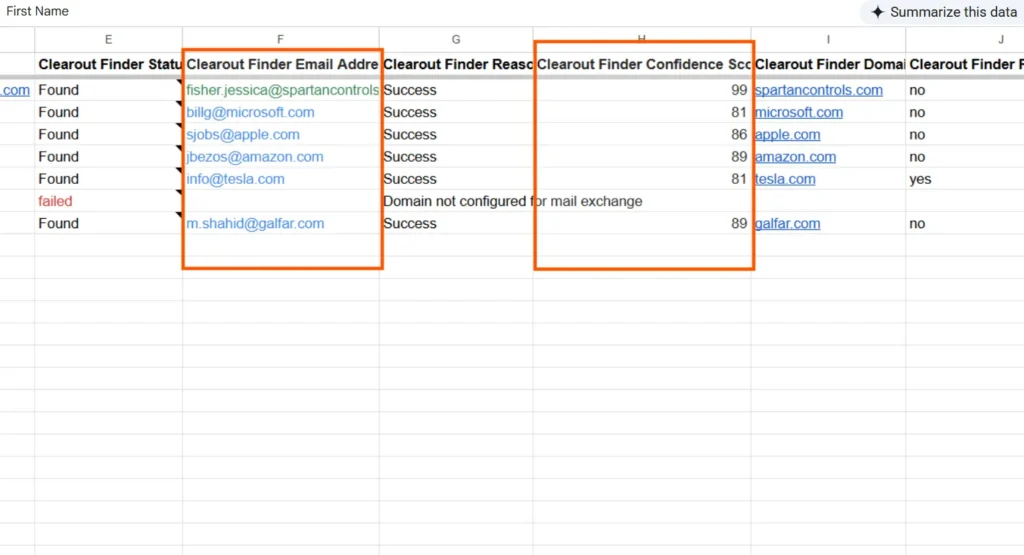
As emails are found, a few new columns will be added:

  • Clearout Finder Status: It shows whether the email address was successfully discovered or not.
  • Clearout Finder Reason: Shows the reason if the email address is not found.
  • Clearout Finder Domain: Shows the domain associated with the found email address
  • Confidence Score: A number from 0 to 100 that helps you understand how likely the email address is valid and reachable. It's colour-coded to help you find matches of high confidence score easily.

Step 6: Filter by confidence score and prioritize high-quality leads


Output fields after finding email address from Clearout Email Finder.

After finding completes, sort by Clearout Finder Confidence Score descending. The colour coding helps you prioritise at a glance:

  • Confidence 90 and above shows in green: certainty level, email is almost definitely correct, used immediately for outreach.
  • Confidence 80 to 89 shows in blue: very confident, good for cold email campaigns.
  • Confidence below 80 shows in grey: consider verifying with Clearout Email Verifier before sending.

Step 7: Verify low-confidence emails before sending


Found emails with confidence scores below 80 should not be sent without further verification. Filter those rows and run Clearout Email Verifier to confirm they actually exist. This two-step approach of finding and then verifying gives you the highest possible accuracy of 99.73%.

Common mistakes that cost teams thousands


  • Using confidence scores incorrectly: Sending to emails with a confidence score below 80 without verifying first is one of the most common and costly mistakes in outbound. For cold outreach use 80 or above only. For lower-priority prospecting, 70 or above is acceptable.
  • Forgetting to refresh old lists: Lists older than 6 months degrade 15 to 20% annually. Contacts change jobs. Domains change. Re-run Email Finder on stale prospect lists before any new campaign cycle.
  • Skipping segmentation on confidence tiers: Not all found emails are equal. Treating a 91-score contact the same as a 74-score contact inflates your effective bounce risk without showing up obviously in any single metric. Always route by confidence tier before sending.
  • Mixing found and unverified contacts: If the confidence score of the found email addresses is below 80, then verify them with Clearout Email Verifier.

For cleaning existing lists, see the full guide: How to Verify Emails in Google Sheets

How much better are your results? Real numbers


Teams that implement Google Sheets email finder see measurable improvements fast:

  • 14 hours saved per month on email data work per rep
  • 3.2x higher email open rates from outreach to verified, found contacts
  • 23% more new contacts added per prospecting cycle
  • SDR research time drops from 3.5 hours per week to under 40 minutes

Cleaner found data also reduces bounce rates downstream.

Real-world use case: How a B2B sales team uses the Clearout Email Finder for Google Sheets?


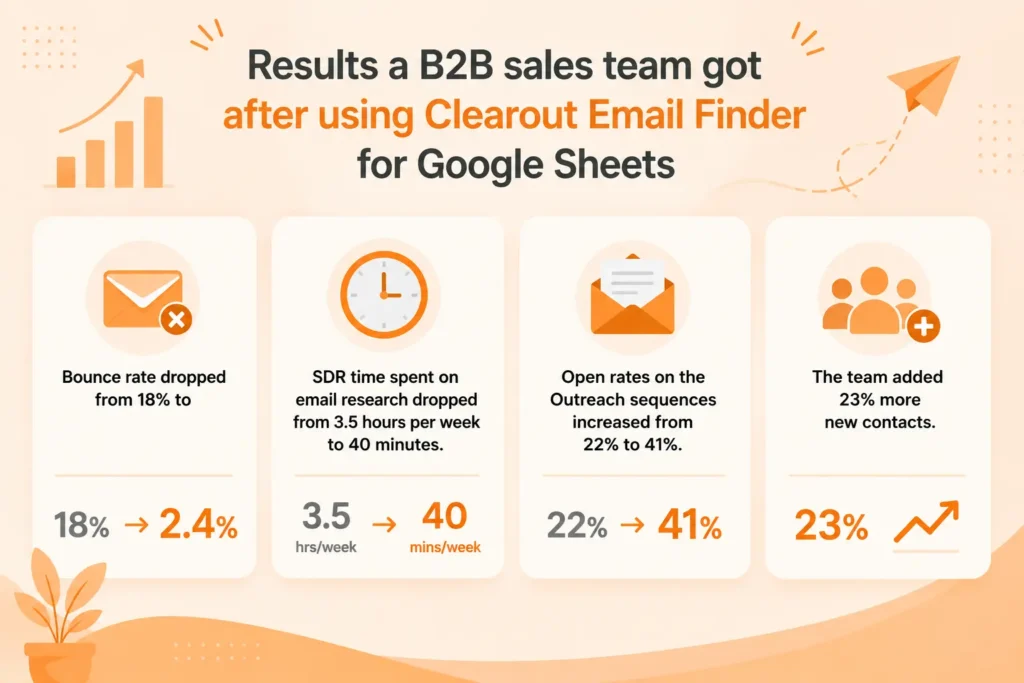
 The result a B2B sales team got after using Clearout Email Finder.

A B2B SaaS business offers a workflow automation software solution to ops leaders in mid-market manufacturing firms (200 – 2,000 employees). The revenue team is 15 SDRs, 1 sales operations manager and is on Salesforce as their CRM, with outreach being their sequencing tool.

What did their workflow look like before Clearout?


Before Clearout, the workflow looked something like this:

  1. Export a list of target accounts into Google Sheets.
  2. Open LinkedIn profiles one by one to find contact details.
  3. Check company websites and manually guess the likely email format for each person.
  4. Spend the rest of the session copy-pasting guesses into a separate checker and waiting.
  5. Import the final cleaned list into the outreach platform.

What changed after installing Clearout's Email Finder for Google Sheets?


  1. Account research stays in the sheet. SDRs populate First Name, Last Name, and Domain from LinkedIn Sales Navigator.
  2. Email Finder runs on filtered segments using the Segment Processing feature.
  3. Confidence score determines routing. The sales ops manager has set a team rule: any email with a confidence score of 90 or above goes directly into the Outreach import queue.
  4. The outreach import happens from the clean sheet.

Results after 90 days

  • The bounce rate dropped from 18% to 2.4%. It was a result of routing only 90+ confidence score addresses into sequences and verifying the remaining separately before any send.
  • SDR time spent on email research dropped from 3.5 hours per week to 40 minutes.
  • Open rates on the Outreach sequences increased from 22% to 41%.
  • The team added 23% more new contacts.

How do different teams find emails in Google Sheets?


Email Finder can help you make better decisions and get better business outcomes as you only get high data quality in your CRM and for campaigns. Here's how you can it across departments:

1. Marketing teams


  • Find contacts for product launch outreach without leaving the campaign sheet
  • Identify missing emails on webinar and gated content registrants
  • Improve inbox placement by starting with found, high-confidence contacts
  • Lower ESP costs by removing contacts that will never be reachable
  • Move catch-all contacts into separate nurture tracks instead of guessing

2. Demand generation teams


  • Build verified prospect lists for ABM campaigns directly in Sheets
  • Find emails for named accounts before they enter the MQL pipeline
  • Measure cost per found verified lead instead of cost per form submission
  • Improve campaign attribution by keeping only reachable contacts
  • Prevent sales from wasting time on leads that never had a valid email

3. Revenue operations teams


  • Audit inactive CRM segments and find updated emails for churned contacts
  • Identify contacts that have decayed due to job changes and company churn
  • Build enrichment workflows that run Email Finder on new account imports
  • Improve segmentation quality using only found and confirmed contact records

4. Customer success teams


  • Find email addresses in Google Sheets and QBR contacts before important outreach
  • Locate new contacts at customer accounts after team changes
  • Trigger proactive contact refresh workflows when outreach goes dark
  • Route customer accounts to alternative contacts when primary emails are unreachable

5. Recruiting teams


  • Find candidate emails when LinkedIn InMail credits are running low
  • Build targeted outreach lists from names and company domains
  • Populate bulk candidate lists from sourced LinkedIn profiles
  • Route catch-all contacts to LinkedIn or phone outreach instead

6. Agency teams


  • Find prospect emails before delivering lists to clients
  • Protect client sender reputation during outbound campaigns
  • Use shared Google Sheets as a collaborative prospecting layer with clients
  • Standardize email finding workflows across multiple client accounts

The bottom line


Email finding should not require leaving Google Sheets or managing multiple tools. With Clearout's Email Finder, you find verified emails and send high-performing campaigns without context switching.

Over time, high-quality data improves sequence completion rates, reduces wasted sending volume, preserves domain warm-up progress, and improves list penetration within target accounts.

Find emails instantly in Google Sheets


Start FREE Now

No credit card required

FAQs


1. What is the difference between Email Finder and Email Verifier? When do I use each?
When you have names, companies, or a domain, and you're creating a new email list, try using Clearout Email Finder to get the appropriate email address. For those who have a list and wants to verify the contacts, use Email Verifier. It will classify the emails into catch-all, valid, invalid, and unknown.
2. How accurate is Clearout's email finding?
Clearout Email Finder successfully discovers pre-verified email addresses by maintaining an accuracy of 99.73%. To find email addresses in Google Sheets with this accuracy, you must have input field as the First Name, Last Name, Company Name and Domain. For better results, you should use advanced settings to process specific segments at a time.
3. I want to find the email addresses in Google Sheets of 50,000 prospects. How long will it take?
Clearout Email Finder for Google Sheets can help you get email addresses that are reachable, and provides a confidence score for every result. In most cases, 10,000 rows are processed in around 15 to 20 minutes, which means a list of 50,000 prospects can usually be completed in roughly 75 to 100 minutes while you monitor progress live.

Share this article

Recent Posts

22 Jun 2026
How To Find Email Addresses In Google Sheets

Learn how to find email addresses in Google Sheets using Clearout. Step-by-step guide to find pre-ve ...

19 Jun 2026
Best Bot Protection Platforms for Forms, APIs & Apps in 2026

Compare the best bot protection platforms for forms, APIs, and apps. Explore features, pricing, and ...

17 Jun 2026
How To Build an Automated Email Finding Workflow in n8n?

Build an automated email finding workflow in n8n with Clearout Email Finder API. Find and verify ema ...

15 Jun 2026
Cold Email Automation Setup To Protect Sender Reputation

Learn how to set up cold email automation without hurting sender reputation. Discover domain warmup, ...

11 Jun 2026
5 Signs Your HubSpot CRM Needs Real-Time Data Validation

Dirty data in your HubSpot CRM costs more than you think. Explore 5 warning signs your HubSpot data ...

Clearout's

Form Guard

Validate email, phone & name on any forms!

  • Real signups only
  • Verified emails
  • Valid phone numbers
  • No fake names
  • Cleaner CRM
  • No devs needed
Try for Free Now

Email Verification, Email Finding Form Guard & Prospecting Service

Expand Your Reach By Finding & Verifying Ideal Prospects.

Sign up & get 100 free credits

No Credit Card required

Create Free Account
Company

Why Clearout?

Pricing

Contact Us

Careers

Press

Enterprise

Sitemap

FAQ

Status

Products

Email Verifier

Email Finder

Form Guard

Data Pulse

Prospect

LinkedIn Email Finder

Reverse Lookup

Google Sheets Add-on

WordPress Plugin

ClearoutPhone

What's New?

Resources

Integrations

HubSpot

Team Account

API

Compare Email Verifier

Compare Email Finder

Compare Prospecting

Use Cases

Blog

Help

Legal

Privacy Policy

Terms

DPA

Security

Trust Center

Certification

ISO 27001/2022

SOC 2 Type 2

GDPR

Partnership

HubSpot Certified

Affiliates

Partners

Clearout for browser

⚡ Supercharge Your Prospect Research with Clearout's LinkedIn Chrome Extension - Find and Verify Emails with Confidence!

Clearout Chrome extension

clearout
© 2026 Clearout Inc. All Rights Reserved. Powered by Clearout.
Keep HubSpot data clean on autopilot — validate, enrich, and sync contacts in real time with Data Pulse. Learn More ➞
X