


• Products
    • FindEmail FinderFind verified business emails from a name and companyLinkedIn Email ExtractorExtract person and company details enriched with emails and phone numbers from LinkedIn profilesProspectBuild SQL and MQL lists with real-time enrichment
      VerifyEmail VerifierAI-powered email verification in real time, in bulk or through APICatch-all Email VerificationResolve catch-all and SEG-protected addresses with Deep VerifyClearout for SheetsVerify emails inside Google Sheets
      Protect & maintainForm GuardCapture intent leads, block fake or bot entries, and differentiate human vs. AI agent submissionsData PulseVerify, enrich and monitor CRM contacts continuously
  • Solutions
    • Sales teamsFind and verify buyer emails for outboundEmail marketersProtect sender reputation before every send
  • Resources
    • DeveloperAPIReference and quick-start guidesWebhooksReal-time event notificationsForm Guard SDKReal-time form validationMCP ServerConnect AI assistants to Clearout
      Knowledge baseGetting startedSet up your account in minutesFAQAnswers to common questionsLead generationBuild clean, verified lead lists
      GuidesPricing guideHow credits and plans workCompare email verifiersHow email verification tools compareCompare email findersHow email finder tools compareData Pulse & HubSpot BreezeKeep Breeze Intelligence data reliable
      BlogEmail verification toolsA guide to choosing a verifierFind anyone's email addressPractical ways to find a business emailForm validationBest practices for cleaner formsView all postsLatest articles and updates
      IntegrationsHubSpotTwo-way sync with Data PulseSalesforceValidate and enrich CRM recordsZohoKeep Zoho CRM contacts cleanApolloVerify contacts before outreachView all integrationsBrowse every connected tool
  • Free Tools
    • Disposable Email CheckerSpot throwaway addresses instantlyReverse LinkedIn Profile LookupLook up details from a LinkedIn profileReverse Email LookupFind who is behind an email addressEmail List CleanerRemove invalid emails from your listCompany Domain Finder APIFind a company domain from its name
  • Pricing
  • Login
Try it free Book a 1-to-1 demo
Akanksha Mishra / November 24, 2026 November 24, 2026

Salesforce Email Tracking: A Complete Guide


Salesforce Email Tracking: A Complete Guide

TL;DR


  • Salesforce email tracking helps sales teams monitor email opens and engagement.
  • You can enable email tracking in Activity Settings and see engagement information in Salesforce records and reports.
  • Salesforce uses a tracking pixel to record email opens. However, image blocking, security scanners, and email privacy features can lead to inaccurate open data.
  • Sending emails to invalid addresses can increase your bounce rate and affect your sender reputation.
  • To keep Salesforce leads and contacts cleaner, Clearout validates leads in real-time and verifies contact information in bulk.

Salesforce email tracking gives sales teams an idea of what happens after an email is sent, but an 'open' does not necessarily mean that someone read it. Email tracking also cannot confirm whether an email address is valid or whether the message reached the recipient's inbox. These restrictions can impact campaign performance and make engagement data more difficult to understand.

In this guide, you will learn how Salesforce email tracking works and how to enable it. We’ll also cover the integrations that support Salesforce email tracking, and how Clearout helps improve Salesforce contact data quality.

Table Of Content


‣ TL;DR
‣ What is Salesforce email tracking?
‣ Salesforce email tracking tools and integrations?
‣ How to enable tracking for emails in Salesforce?
‣ How to reduce bounces and unsubscribes in Salesforce email campaigns?
‣ How does Clearout integrate with Salesforce?
‣ Pros and cons of Salesforce email tracking
‣ Bottom line
‣ FAQ
What is Salesforce email tracking?


Salesforce email tracking logs the actions of recipients and provides sales teams with data to review before taking action.

The Salesforce email tracking features available to you depend on your Salesforce product, license, and configuration.

  • Email opens: Records an open when the recipient's email client loads the tracking pixel.
  • Link clicks: Records clicks on supported links through eligible integrations.
  • Email activities: Records email conversations against the relevant Lead and Contact records.
  • Engagement information: Shows available details, such as the first and last recorded open dates.
  • Email status reports: Provide details about tracked emails through supported Salesforce reporting options.

For example, a salesperson can find out if a prospect opened a product proposal before following up. But an open or click does not necessarily mean a purchase. These signals can also be impacted by security scanners and email privacy features.

Salesforce email tracking tools and integrations?


Salesforce email integration with Gmail and Outlook allows users to log emails and access CRM information. Additional engagement tracking features depend on the user’s license and configuration.

1. Salesforce inbox


Salesforce Inbox can be configured to track email engagement, either with supported Gmail or Outlook workflows, with the right license and settings.

Depending on the configuration, sales reps will be able to see when emails were opened, supported links. They can also receive engagement notifications and log emails to Salesforce records.

Salesforce Inbox email tracking can be beneficial for sales reps who use external email platforms. It lets them view recorded engagement activity within Salesforce.

2. Gmail integration


The Salesforce and Gmail integration lets users view relevant CRM info while they're in Gmail and log emails against the relevant Salesforce Lead and Contact records.

Eligible Salesforce inbox configurations can also enable email open and click tracking. But it's not enough to just get Gmail integrated with Salesforce; you need to enable these tracking features first.

3. Outlook integration


The Salesforce Outlook integration enables users to log email from Microsoft Outlook and easily view relevant Salesforce information directly from Outlook.

You can also track email engagement with eligible Salesforce Inbox configurations. Before enabling such features, administrators should check whether the necessary licenses, permissions, and configuration are in place.

4. Einstein Activity Capture


Einstein Activity Capture automatically records e-mail and calendar activity from supported Google and Microsoft accounts.

It reduces manual data entry and provides sales teams with a view into customer activity. Its data storage and reporting, however, are different from the traditional Salesforce email tracking.

Teams should understand how each integration collects, stores, and reports email activity before choosing a reporting method.

How to enable tracking for emails in Salesforce?


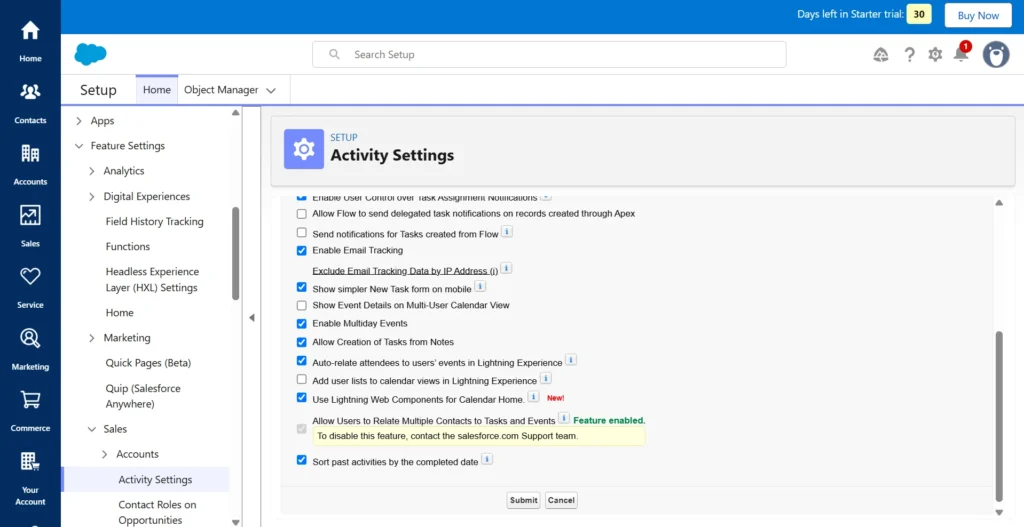
Image of Salesforce activity settings

You can enable Salesforce email tracking in the Activity Settings. Administrators can also enable enhanced email to provide additional email tracking capabilities. Salesforce email logs help sales teams review recorded email interactions against the relevant Lead and Contact records.

Follow the steps below to enable email tracking:

  • Go to Salesforce Setup: Log in to Salesforce, then click the gear icon. Select Setup.
  • Open Activity Settings: Type Activity Settings in the Quick Find search box and open the setting.
  • Enable email tracking: Select the enable email tracking checkbox and click Submit.
  • Turn on enhanced email: Enable enhanced email if your Salesforce setup requires it for managing email records.
  • Review tracked email activity: View tracked email activity in the Activity timeline or HTML Email Status report (depending on the method of sending and tracking the email).

When activated, Salesforce can track opens of HTML emails that are supported. Tracking, however, begins once the feature is turned on, and results can be impacted by image blocking or automatic security scans.

Typically, those email messages collected in Einstein Activity Capture are seen in the Activity Timeline instead of the HTML Email Status report.

How to reduce bounces and unsubscribes in Salesforce email campaigns?


Salesforce email automation and tracking help sales teams manage campaigns, but they don't confirm whether recipient email addresses are valid. Verifying contact data before sending emails helps reduce avoidable delivery failures and keeps your Salesforce email campaigns focused on reachable contacts.

1. Verify if any existing email addresses are correct


Before adding contacts to an active campaign, verify their email addresses. Email verification can detect invalid email addresses, disposable email addresses and other risky email addresses that can impact your outgoing email delivery.

Clearout Email Verifier integrates with Salesforce and lets users choose email campaign lists of leads/contacts for bulk email verification.

Users have the ability to check the verification results, and export them back to Salesforce before running campaigns. Cleaning up invalid and risky addresses may help decrease unnecessary bounces and shield your sender reputation.

2. Validate leads and contacts


Bulk verification can help to clean up existing records but can not stop incorrect email addresses being added to Salesforce via website forms, website imports or other lead sources.

When Salesforce Leads and Contacts are made or updated, Clearout Data Pulse checks the selected names, emails, and phone fields.

There are three trigger options to choose from:

  • Created Only: Validates records only when they are created.
  • Updated Only: Verifies records when the name, email or phone fields are updated and selected.
  • Created and Updated: Ensures records are created and updated whenever the selected fields are created and updated.

The verification results are returned to Salesforce, keeping teams' lists clean and minimizing the need to manually clean the same list over and over again.

3. Check bounced email addresses


Review bounced checks routinely to uncover quality of contact source and delivery issues. Block addresses which have been permanently hard bounced, and revise records when a valid replacement address is available.

Do not send additional campaigns to addresses which have caused a permanent hard bounce. These records also allow teams to see any lead sources that might be adding email addresses to Salesforce that aren't valid.

4. Manage unsubscribe preferences


Email verification can verify an email address but cannot tell if a person wants to receive marketing emails.

Maintain Opted Out contact lists and avoid sending emails to people who have opted out. Furthermore, take a look at campaign relevancy, frequency, and audience targeting. Based on the recipient's interests, sending messages of that nature can help minimize unwanted email and unnecessary unsubscribes.

5. Monitor campaign performance


View bounce rates, click-through rates, conversions, unsubscribe rates, and other metrics besides email open rates.

These measures are based on various concerns:

  • Bounce rate: Indicates delivery problems and contact data problems.
  • Click-through rate: Display interactions with supported links.
  • Conversion rate: The numbers of actions that recipients take.
  • Unsubscribe rate: Provides an indication of issues in campaign relevance or frequency.
  • Open rate: Gives direction information about engagement.

How does Clearout integrate with Salesforce?


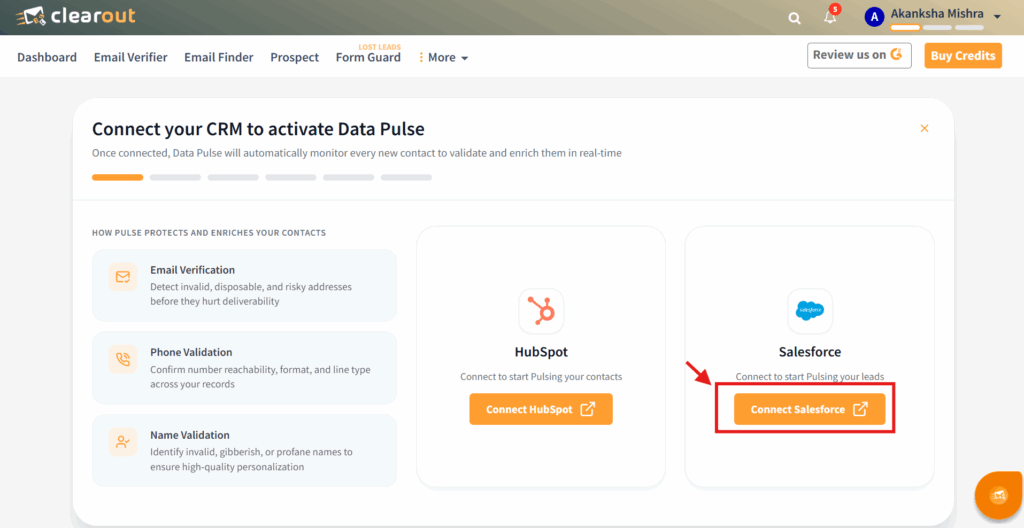
Connect Salesforce with Clearout

Clearout offers two ways to maintain Salesforce contact data quality: real-time validation with Data Pulse and bulk email verification with Email Verifier.

1. Data Pulse: Real-time lead & contact verification


Data Pulse validates selected fields in Salesforce Leads and Contacts when records are created or updated. It can verify email addresses, validate and normalize names, validate phone numbers, and report back to Salesforce when names are validated or failed.

Administrators can set the mapping for input and output fields and determine which types of record events should be validated. Data Pulse checked fields for updates.

2. Email Verifier: Bulk email verification


Clearout Email Verifier lets users verify email addresses in existing Salesforce Campaigns containing Leads or Contacts.

These are the steps that are involved in the process:

  • Link your Salesforce account with Clearout.
  • Choose the Salesforce campaign lists that are available.
  • Include lead or contact lists you wish to be verified.
  • Begin the verification process.
  • Review the verification results.
  • Export the results to Salesforce or a CSV file.

When exporting results, users can select the Unsubscribe or Append options, or both:

  • Unsubscribe: Removes non-deliverable addresses from the selected Salesforce records.
  • Append: Adds Clearout verification result fields to those records.

Step 1: Setting up Clearout Salesforce integration


The first setup will require a Salesforce administrator. After the package and permissions are set up, authorized users are able to make validations.

Step 2: Install the Clearout managed package


Use the official Clearout managed package installation link to install Clearout in your Salesforce organization.

Step 3: Assign user permissions


In Salesforce Setup, select Permission Sets, and add the Clearout permission set to users who should have access.

Step 4: Connect Salesforce to Clearout


In Clearout, go to Integrations > Salesforce > Add Account and authorize access to your Salesforce organization.

Step 5: Configure verification


For Data Pulse, specify the fields to be validated, set up the fields to/from mapping, and the record triggers.

For bulk verification, select the Salesforce campaign lists you want to verify and start the process.

Check the Salesforce edition requirements:

Salesforce editionEmail verifierData Pulse
EnterpriseSupportedSupported
UnlimitedSupportedSupported
DeveloperSupportedSupported
Professional with API access add-onSupportedNot Supported

Pros and cons of Salesforce email tracking


Salesforce email tracking helps sales teams understand how recipients engage with their emails.

Pros


  • Email engagement: Track email opens and clicks to get an idea of how recipients interact with your emails.
  • CRM integration: View email activity alongside contact and lead records in Salesforce.
  • Better follow-ups: Use engagement data to help decide when to follow up with prospects.

Cons


  • Image blocking: When email clients block images, open tracking may not work.
  • Automated opens: Security scanners and email privacy features can trigger opens without any action from the recipient.
  • No proof of reading: An open doesn't confirm that someone actually read or understood your email.
  • Limited availability: Some tracking features depend on your Salesforce edition, licenses, and configuration.
  • Reporting limitations: The traditional HTML Email Status report doesn't include all tracking details.

Salesforce tracking data can help guide follow-ups, but don't treat every open or click as a genuine buying signal.

Bottom line


Sales and marketing teams use Salesforce email tracking to monitor email engagement and plan follow-ups. But, tracking pixels can yield false data.

Real-time lead validation and contact validation, and bulk email verification are used to solve contact data issues with Clearout. This ensures that teams can have a cleaner Salesforce record prior to the next campaign.

Be ready for your Salesforce email marketing!


Verify Salesforce leads with Clearout

FAQ


1. Does Salesforce offer the ability to track emails?
Yes. For some of the workflows supported, Salesforce provides email tracking. The user can check if the e-mail has been opened and access any engagement data via associated records/reports. Other features will vary based on Salesforce product, license and configuration.
2. How to monitor email opens in Salesforce?
Set up activity settings to allow tracking of emails in Salesforce setup and enable enhanced email in the Lightning experience. The tracking pixel is what Salesforce uses to track opens in supported HTML email messages. Depending on how you sent the email, browse through the information using the Activity Timeline or HTML Email Status reports.
3. What are the Salesforce bounce rates?
Check email addresses prior to sending campaigns, clean bounced addresses and review bounced addresses on a regular basis. Clearout validates new Salesforce leads and contacts in real time via Data Pulse and validates existing campaign contact lists in bulk using Clearout's Email Verifier.

Share this article

Recent Posts

24 Nov 2026
Salesforce Email Tracking: A Complete Guide

Learn how Salesforce email tracking works, enable tracking, understand open data limitations, and im ...

24 Nov 2026
Clearout MCP: How to Verify and Find Emails Inside Your AI Assistant

Connect Clearout MCP to Claude, ChatGPT and other AI assistants to find business emails, verify addr ...

24 Nov 2026
Email Marketing Tips for Insurance Agents: A Complete Guide

Learn email marketing tips for insurance agents, from campaign examples and list verification to pre ...

19 Nov 2026
6 Email Finder Tools for AI Agents

Explore 6 email finder tools for AI agents. Compare features, verification, APIs and MCP integratio ...

17 Nov 2026
Best Inbound Email APIs: Features, Pricing, and Comparison (2026)

Compare the best inbound email APIs in 2026 by features, pricing, and use case. Learn how Clearout ...

Black Friday Sale - Up to 50% Off GRAB THE DEAL

Email Verification, Email Finding Form Guard & Prospecting Service

Expand Your Reach By Finding & Verifying Ideal Prospects.

Sign up & get 100 free credits

No Credit Card required

Create Free Account
Company

Why Clearout?

Pricing

Contact Us

Careers

Press

Enterprise

Sitemap

FAQ

Status

Products

Email Verifier

Catch-all Verification

Email Finder

Form Guard

Data Pulse

Prospect

LinkedIn Email Finder

Reverse Lookup

Google Sheets Add-on

WordPress Plugin

ClearoutPhone

What's New?

Resources

Clearout Insights

Integrations

HubSpot

Team Account

API

Clearout MCP

Compare Email Verifier

Compare Email Finder

Compare Prospecting

Use Cases

Blog

Help

Legal

Privacy Policy

Terms

DPA

Security

Trust Center

Certification

ISO 27001/2022

SOC 2 Type 2

GDPR

Partnership

HubSpot Certified

Affiliates

Partners

Clearout for browser

⚡ Supercharge Your Prospect Research with Clearout's LinkedIn Chrome Extension - Find and Verify Emails with Confidence!

Clearout Chrome extension

Clearout
© 2026 Clearout Inc. All Rights Reserved. Powered by Clearout.
Validate Enrich New Salesforce contacts automatically with Data Pulse. Learn More ➞
X