- Products
- Solutions
- Resources
- DeveloperAPIReference and quick-start guidesWebhooksReal-time event notificationsForm Guard SDKReal-time form validationMCP ServerConnect AI assistants to ClearoutKnowledge baseGetting startedSet up your account in minutesFAQAnswers to common questionsLead generationBuild clean, verified lead listsGuidesPricing guideHow credits and plans workCompare email verifiersHow email verification tools compareCompare email findersHow email finder tools compareData Pulse & HubSpot BreezeKeep Breeze Intelligence data reliable
- Free Tools
- Pricing
- Login





Creating High-Converting HubSpot Forms: A Simple 7-Step Process

HubSpot Forms is a feature of the HubSpot marketing software platform that allows users to create and embed web forms on their websites. These forms can be used to collect information such as names, email addresses, and other contact information from website users. The forms are fully customizable and can be used for a variety of purposes, such as capturing leads, gathering customer feedback, or conducting surveys.
When a visitor submits a form, the information is instantly saved in the HubSpot CRM (customer relationship management) platform, where it can be used to segment and manage leads, track customer interactions, and automate marketing campaigns. HubSpot Forms is an excellent solution for companies that want to generate leads and engage with their customers through their websites.
When a visitor submits a form, the information is instantly saved in the HubSpot CRM (customer relationship management) platform, where it can be used to segment and manage leads, track customer interactions, and automate marketing campaigns. HubSpot Forms is an excellent solution for companies that want to generate leads and engage with their customers through their websites.
What features do HubSpot forms offer?
HubSpot Forms offer a range of features that allow users to customize and manage their forms. Some key features are as follows :
1. Customization: Users can customize the design and layout of their forms, including the colors, fonts, and styles. They can also use pre-designed templates or construct their own custom forms from scratch.
2. Field customization: Users can add and customize the fields on their forms, such as text fields, dropdown menus, checkboxes, and more. They can also choose which fields, dropdown menus, checkboxes, and other features to display. They can also specify whether certain fields are required or optional, as well as provide default values for specific fields.
3. Embedding: Users can embed their forms on their website, landing pages, or blog posts using a simple code snippet. Forms can also be embedded in email campaigns or shared as a link.
4. Analytics: Users can view detailed analytics on their forms, such as the number of submissions, conversion rates, and form visitors' location and referral source.
5. Lead Routing: Users can set up lead routing rules to automatically assign leads to specific sales or marketing team members based on the information entered in the form.
6. Integrations: HubSpot Forms can be integrated with other tools and platforms, such as CRMs, email verifiers, and social media platforms. This enables users to automate and streamline their marketing and sales workflows. For example, HubSpot Google Sheets integration allows automated reporting from the HubSpot Forms.
Here are some tips for creating an effective HubSpot Form:
1. Keep it simple: Keep the number of form fields to a minimum and only ask for information that is essential to your business. This will make it easy for visitors to fill out the form and increase your conversion rates.
2. Make it mobile-friendly: Ensure that your form is responsive and looks good on all devices, including mobile phones and tablets. This makes it easier for visitors to fill out your form on the go.
3. Use clear and concise language: Use simple, easy-to-understand language in your form. Avoid using jargon or technical terms that may be confusing to your visitors.
4. Use formatting to make it easy to read: Use headings, bullet points, and white space to make your form easy to read and navigate. This will help visitors quickly find the information they need.
5. Use progressive profiling: Rather than asking for everything at once, progressive profiling allows you to gradually collect more information about your leads over time. This can increase the likelihood of visitors completing your form.
6. Use thank-you pages: After a visitor submits your form, redirect them to a thank-you page. This can be used to provide additional information or resources or to ask for further engagement, such as following you on social media.
7. Test and optimize your HubSpot form: Use A/B testing to try out different versions of your form and discover which one performs the best. Use the insights you gain from testing to continually optimize and improve your form.
Let’s create a HubSpot Form in seven simple steps:
1. Login to your HubSpot account and click on Marketing > Forms
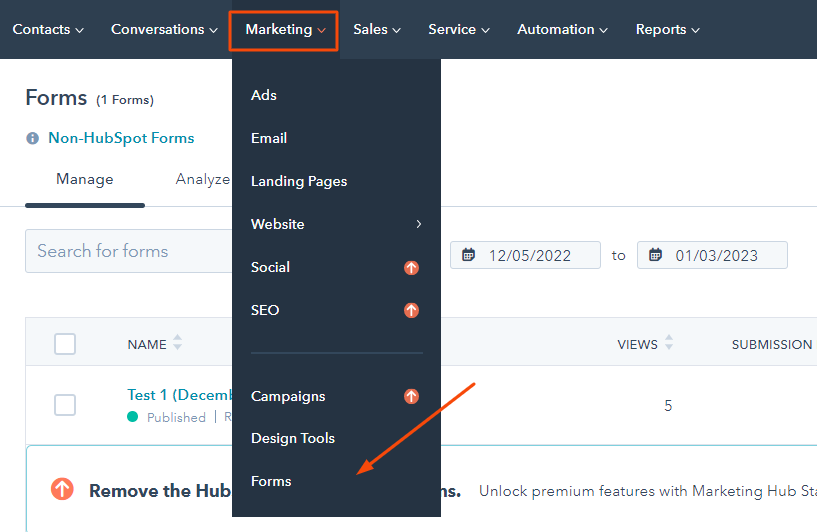
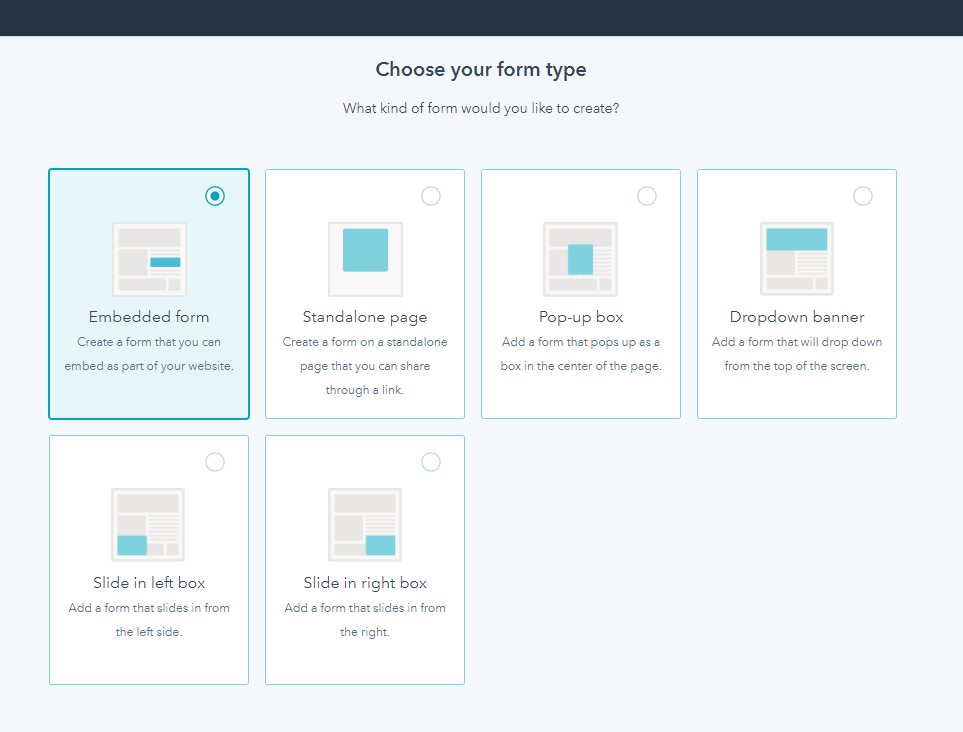
2. Click on Create form > Choose the form type
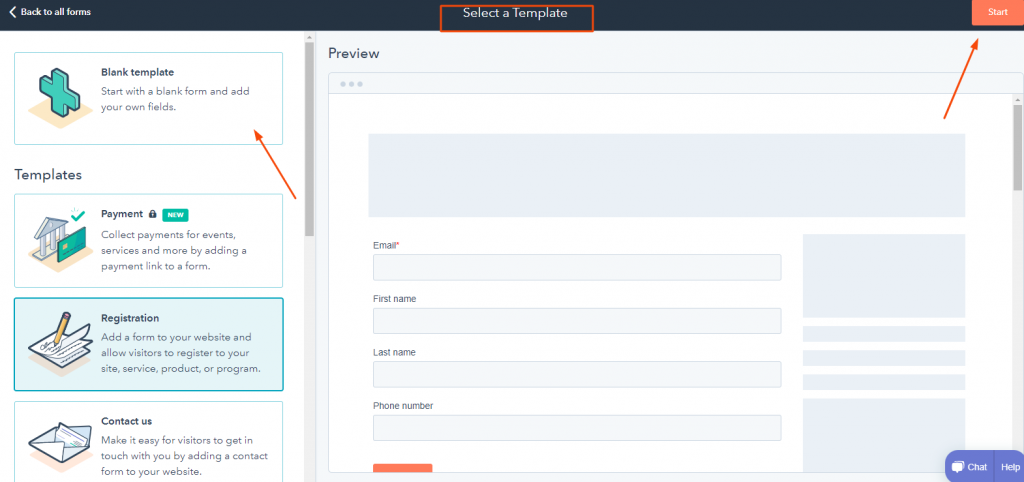
3. On the left, there are blank and pre-designed templates. Choose the one that best meets your requirements. Check the preview of the selected form on the right and click on Start in the top right corner.
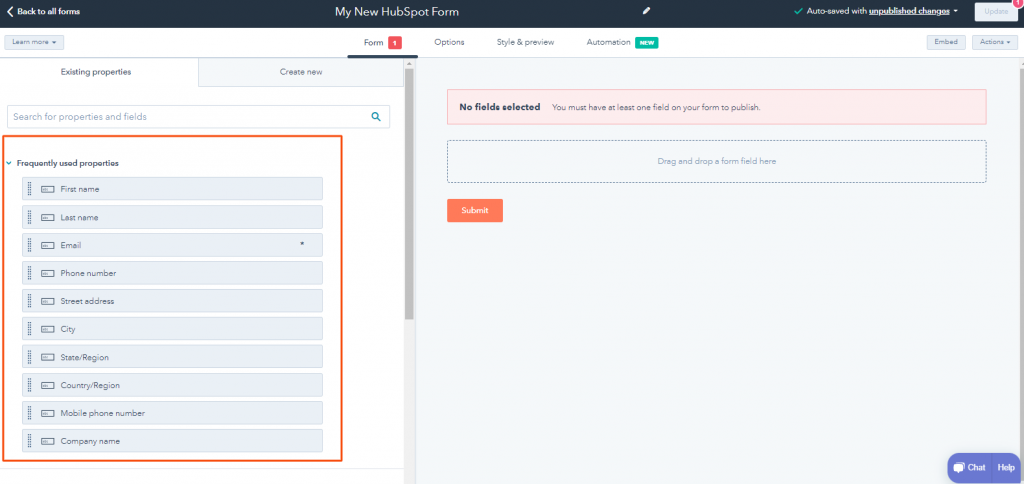
4. Next, edit the form name, and customize the form fields. Click on the fields present on the left and add them to your form. Fields like First name, Last name, Email address, Phone number, Company name, etc.
Tip Integrate the email address field with a real-time email verification tool to guaratee that ONLY valid email addresses are captured at the point of data capture. This helps prevent typos and other mistakes that could lead to failed deliveries or lost communications. It also enhances the user experience by providing immediate feedback if there is a problem, and can help protect your users and improve the security of your online platform by preventing the use of fake or disposable email addresses.
It comes with advanced features like
- capturing business email addresses only,
- capturing non role-based accounts
- auto-suggesting the correct email address & more

All of these benefits combine to make real-time email verification an essential tool for the HubSpot form or any online form.
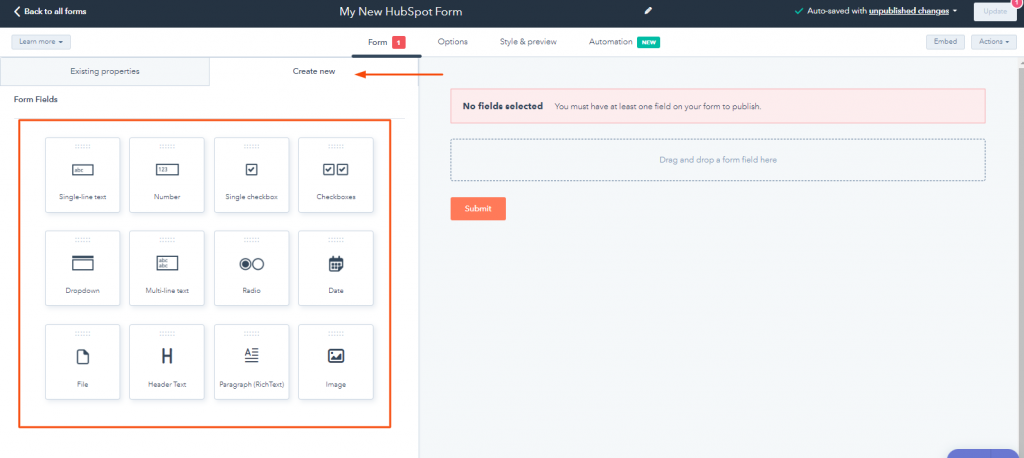
5. Create customized fields under ‘Create New’. The CTA button can be customized too. Once done, click ‘Update’ in the top right corner.
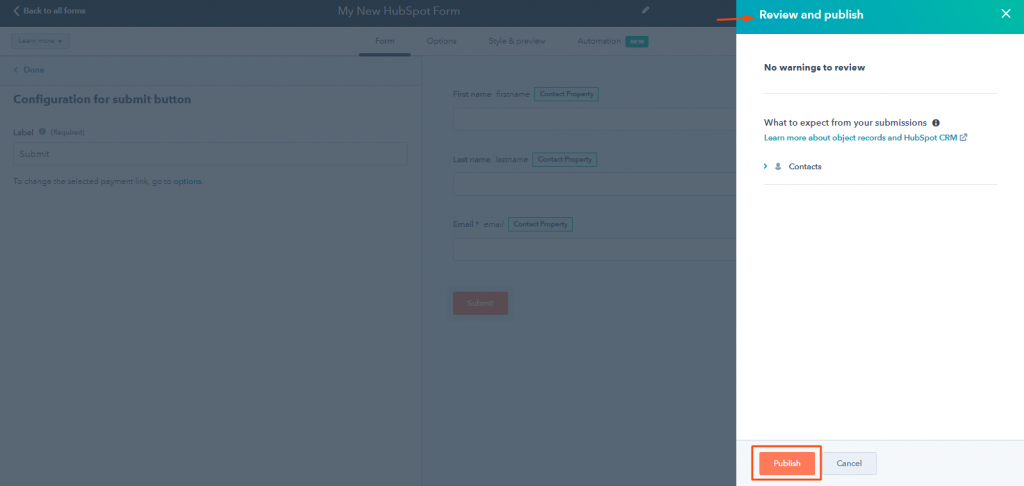
6. Review and publish.
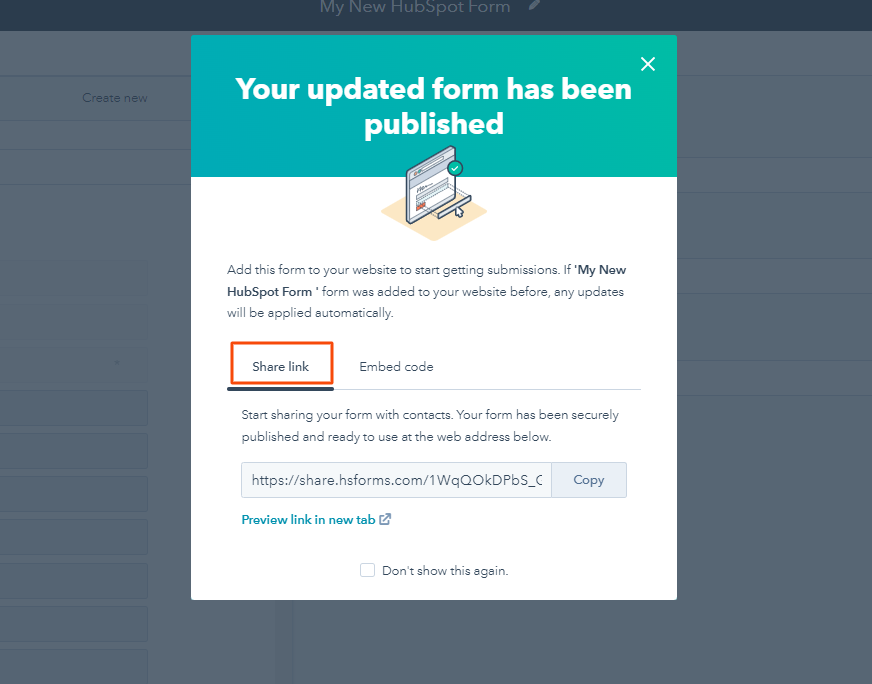
7. Share and Succeed!
Now you can use the form on any of your HubSpot pages or you can also copy the script of the form to use it on any different site Page. Copy the script by clicking on share on the upper right side.
Now you can use the form on any of your HubSpot pages or you can also copy the script of the form to use it on any different site Page. Copy the script by clicking on share on the upper right side.
To summarize, creating a HubSpot form is a simple and effective way to gather information from your audience. Whether you're looking to capture leads, gather feedback, or simply get in touch with your audience, HubSpot's form builder makes it easy to create a custom form that meets your specific needs. By following the steps above, you can quickly and easily create a professional-grade form that will help you collect the data you need to grow your business. So why wait? Start building your HubSpot form today and see the benefits for yourself!
Recent Posts
24 Nov 2026
Salesforce Email Tracking: A Complete Guide
Learn how Salesforce email tracking works, enable tracking, understand open data limitations, and im ...
24 Nov 2026
Clearout MCP: How to Verify and Find Emails Inside Your AI Assistant
Connect Clearout MCP to Claude, ChatGPT and other AI assistants to find business emails, verify addr ...
24 Nov 2026
Email Marketing Tips for Insurance Agents: A Complete Guide
Learn email marketing tips for insurance agents, from campaign examples and list verification to pre ...
19 Nov 2026
6 Email Finder Tools for AI Agents
Explore 6 email finder tools for AI agents. Compare features, verification, APIs and MCP integratio ...
17 Nov 2026
Best Inbound Email APIs: Features, Pricing, and Comparison (2026)
Compare the best inbound email APIs in 2026 by features, pricing, and use case. Learn how Clearout ...